
Campaign URL Builder: Create UTM Tracking URLs for Google Analytics 4
Campaign URL Builder
Add campaign parameters to URLs so you can track Custom Campaigns in Google Analytics.
If you run Facebook Ads, Google Ads, email marketing, social media campaigns, influencer promotions, or other digital marketing activities, one of the most important questions is
Where are your website visitors actually coming from?
You may know that your website received 1,000 visitors this month. But do you know how many came from Facebook Ads? How many came from Google Ads? Which campaign generated the most traffic? Which ad or link received the most clicks?
Without proper campaign tracking, answering these questions can be difficult
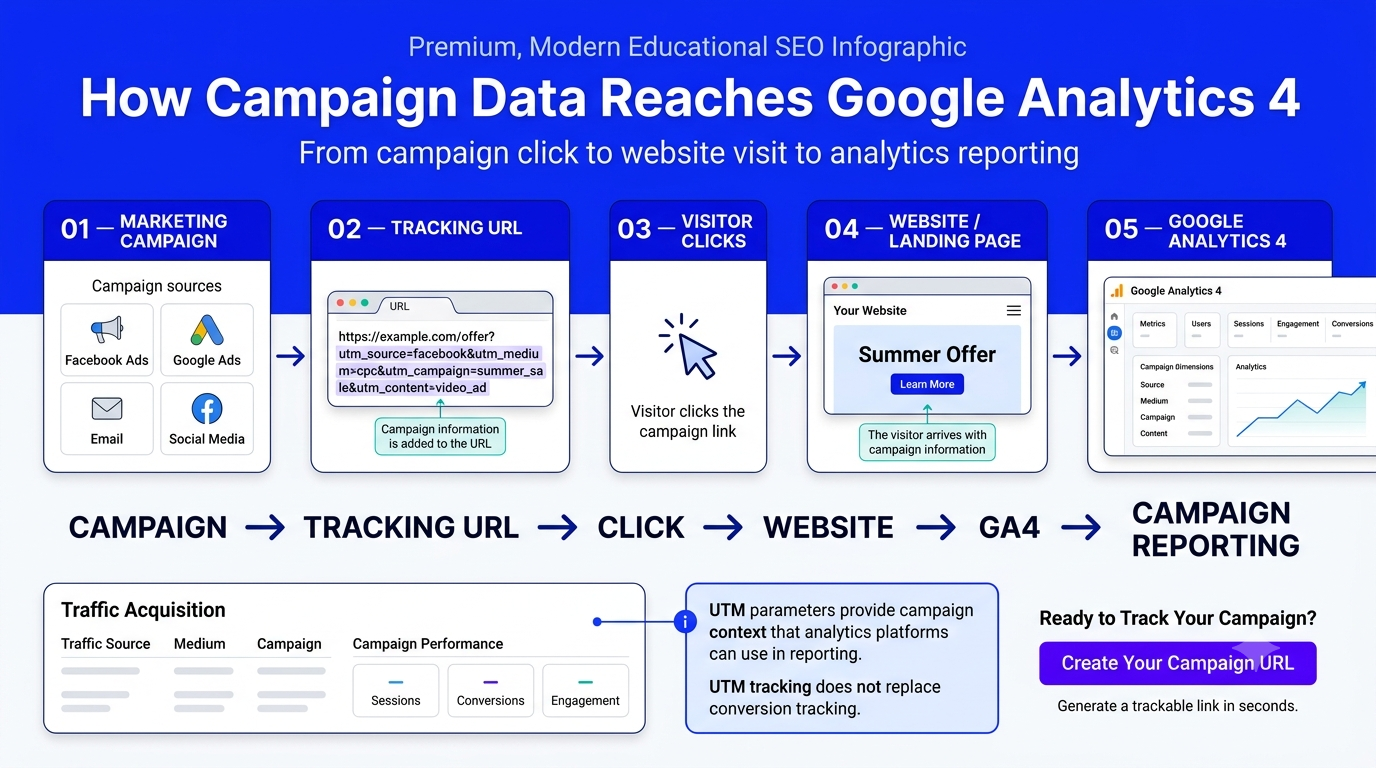
A Campaign URL Builder helps solve this problem by adding UTM tracking parameters to your website URLs. These parameters provide additional campaign information that can be used by Google Analytics 4 (GA4) and other analytics platforms to understand where your traffic came from
You can also use our free tool to create your tracking URL in just a few seconds
Create Your Tracking URL Now
Enter your destination URL, add your campaign information, and generate a ready-to-use tracking link
Use Our Free Campaign URL Builder
What Is a Campaign URL Builder?
A Campaign URL Builder is a tool that helps you add tracking parameters to the end of a website URL.
For example, your normal website URL might look like this:
https://example.com/
After adding campaign tracking parameters, it could look like this:
https://example.com/?utm_source=facebook&utm_medium=cpc&utm_campaign=summer_sale
The first part is your normal destination URL.
The information after the ? contains campaign parameters.
These parameters tell your analytics platform additional information about the visit, such as:
Where the visitor came from
What marketing channel was used
Which campaign generated the visit
Which keyword was involved
Which ad or link was clicked
This makes it easier to analyze your marketing performance
Why Do You Need Campaign Tracking
Imagine that you are running a marketing campaign for your business.
You spend:
₹10,000 on Facebook Ads
₹10,000 on Google Ads
₹5,000 on influencer marketing
₹2,000 on email marketing
All of these campaigns send visitors to the same landing page.
Without proper tracking, your analytics data may not clearly tell you which specific campaign generated each visit.
With structured tracking parameters, you can organize your traffic by source, medium, campaign, and other dimensions.
This allows you to ask better questions:
Which platform generates the most traffic?
Which campaign performs better?
Which creative gets more clicks?
Which email link generates more visits?
Which marketing channel deserves more budget?
That is why campaign tracking is an important part of digital marketing measurement.
Don't Guess Which Campaign Works
Create a trackable URL before launching your next campaign
Create a Free Tracking URL
How Do UTM Parameters Work
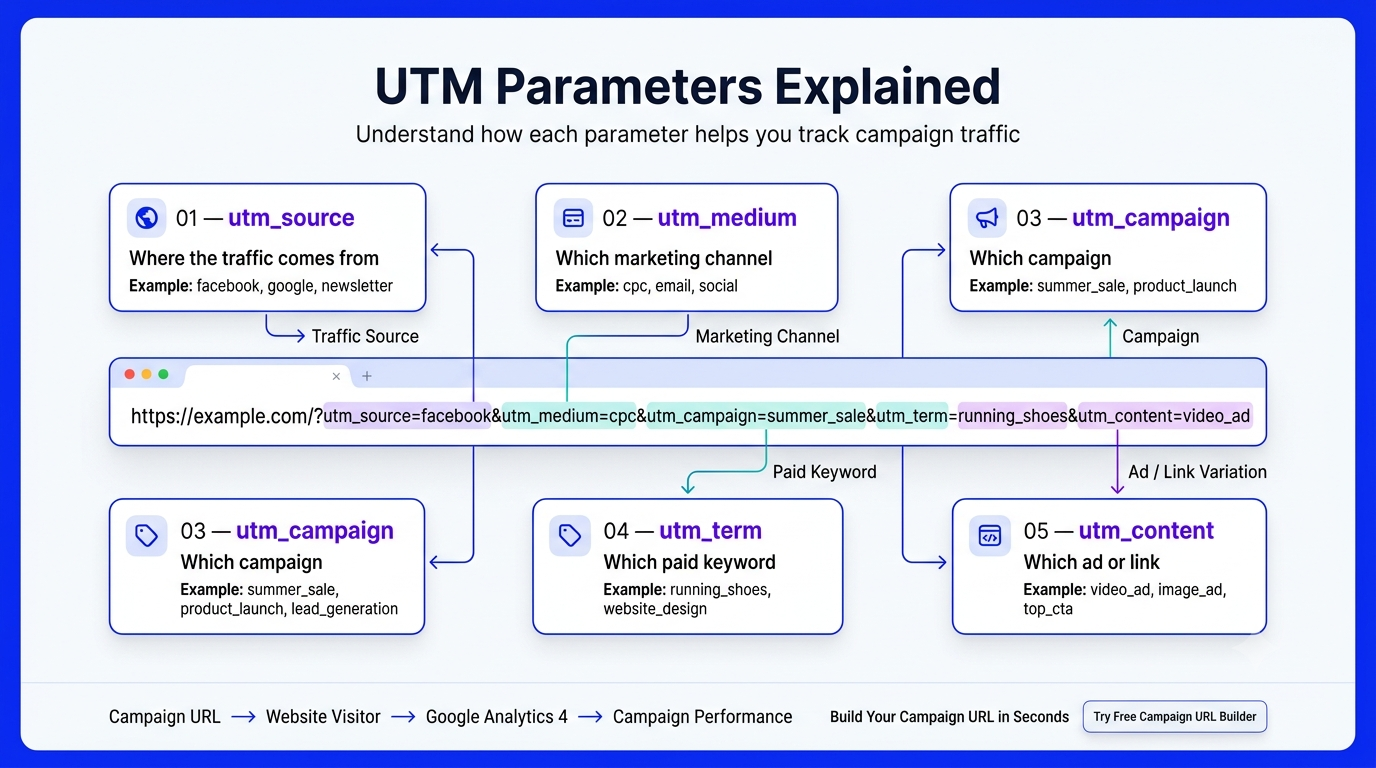
UTM parameters are small pieces of information added to a URL.
The most commonly used parameters are:
utm_source
utm_medium
utm_campaign
utm_term
utm_content
Each parameter has a different purpose.
Let’s understand them with simple examples.
UTM Source — Where Did the Visitor Come From
utm_source identifies the platform, website, or source that sent the traffic.
Examples include:
facebook
google
instagram
linkedin
youtube
newsletter
For example:
utm_source=facebook
This tells your analytics
system that the campaign traffic came from Facebook.
For Google:
utm_source=google
For an email newsletter:
utm_source=newsletter
Best Practice
Use consistent names.
For example, don’t use:
for one campaign and:
for another.
Choose one format and keep using it.
UTM Medium — What Type of Marketing Was Used
utm_medium identifies the marketing channel or medium.
Common examples include:
cpc
email
social
banner
affiliate
For a paid advertising campaign:
utm_medium=cpc
For email:
utm_medium=email
For a social media campaign:
utm_medium=social
The exact naming convention can vary depending on your analytics setup, but consistency is extremely important.
3. UTM Campaign — Which Campaign Is It?
utm_campaign identifies the specific marketing campaign.
For example:
utm_campaign=summer_sale
or:
utm_campaign=website_offer
or:
utm_campaign=lead_generation
A good campaign name should be descriptive enough that you can understand it later.
For example:
campaign1
is not very useful.
Instead:
august_website_offer
gives you much more information.
UTM Term — Which Paid Keyword
utm_term is an optional parameter that can be used to identify paid search keywords.
For example:
utm_term=website_design
or:
utm_term=digital_marketing
This can be useful for search advertising campaigns when you need additional keyword-level tracking information.
If you don’t need it, you can leave the field empty
UTM Content — Which Ad or Link
utm_content helps differentiate multiple ads or links within the same campaign.
Imagine you’re running two Facebook ads:
Ad A — Image
utm_content=image_ad
Ad B — Video
utm_content=video_ad
Both ads can use the same source, medium, and campaign name, while utm_content distinguishes the individual creative.
This is especially useful when testing:
Image vs video
Different headlines
Different CTA buttons
Different banners
Different email links
Complete Example of a Campaign Tracking URL
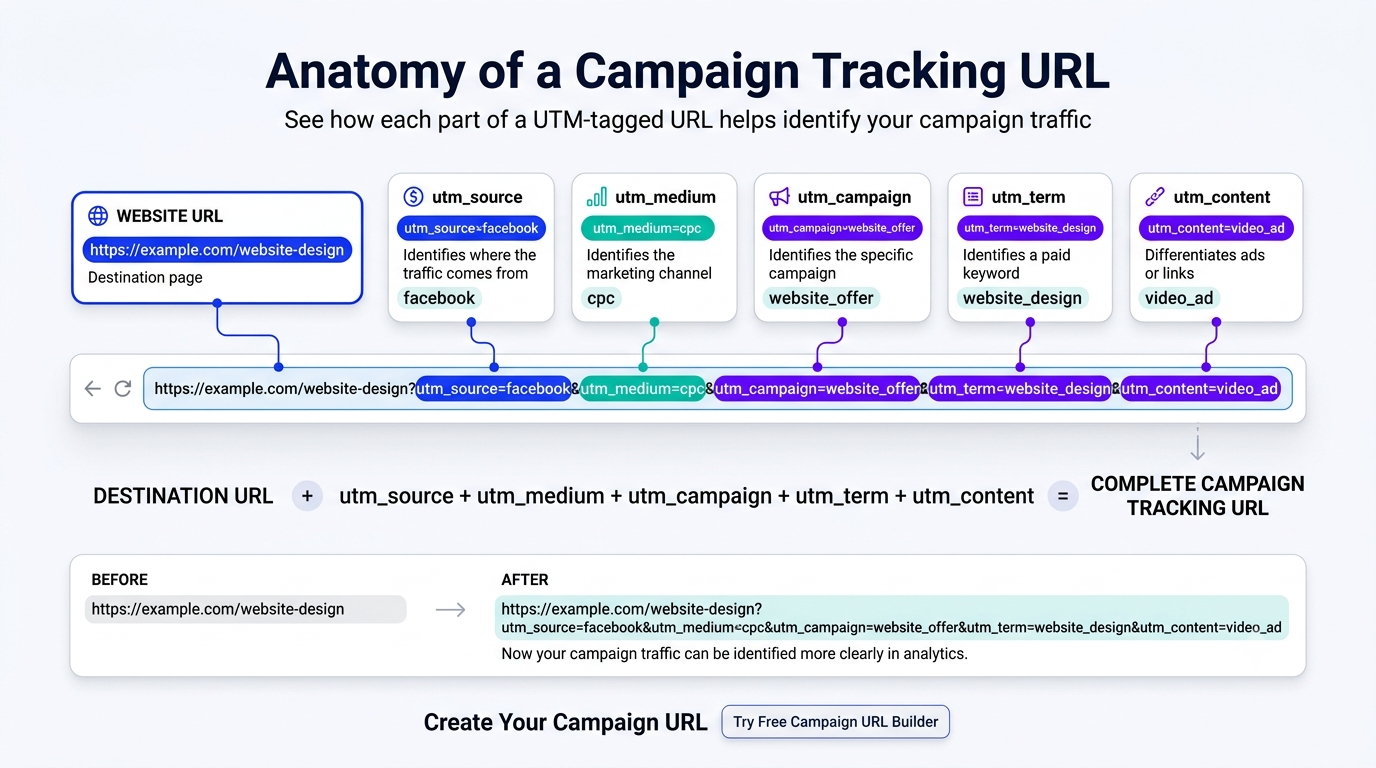
Let’s say you are promoting a website design service.
Your destination page is:
https://example.com/website-design
Your campaign information is:
Source: facebook
Medium: cpc
Campaign: website_offer
Term: website_design
Content: video_ad
Your final URL could look like:
https://example.com/website-design?utm_source=facebook&utm_medium=cpc&utm_campaign=website_offer&utm_term=website_design&utm_content=video_ad
Instead of manually typing all of these parameters, you can use our tool
Build This URL Automatically
Open the Free Campaign URL Builder
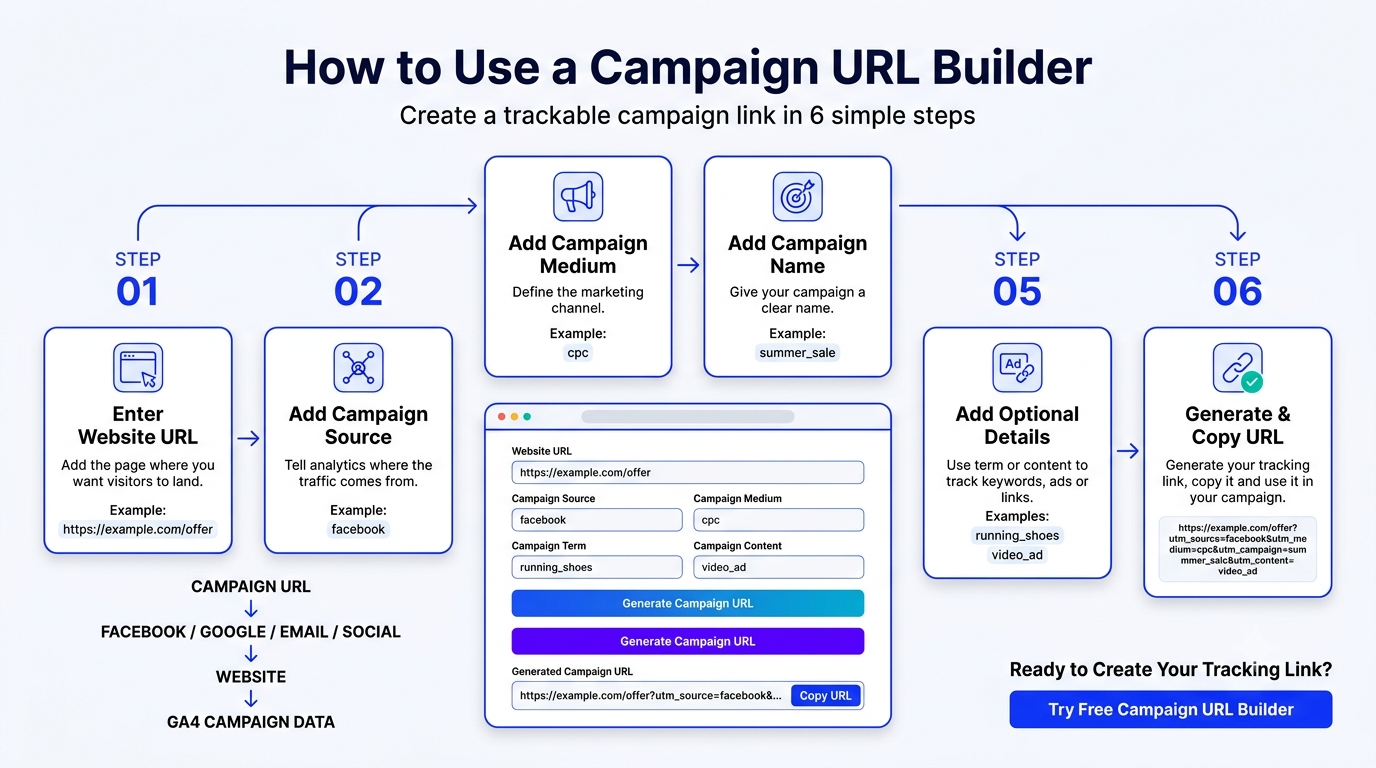
Step 1: Enter Your Website URL
Start by entering the page where you want to send visitors.
For example:
https://example.com/offer
This could be:
Your homepage
Product page
Service page
Landing page
Blog article
Registration page
Always make sure that the destination URL is correct before generating your tracking link.
Step 2: Enter Campaign Source
Tell the tool where your traffic is coming from.
For Facebook:
For Google:
For email:
newsletter
For Instagram:
Step 3: Enter Campaign Medium
Specify the marketing medium.
For paid advertising:
cpc
For email:
For social:
social
Enter Campaign Name
Give your campaign a meaningful name.
For example:
august_offer
website_launch
lead_generation
summer_sale
Avoid random names that you won’t understand later.
Add Optional Parameters
Campaign Term
for keyword-related tracking.
Campaign Content
for differentiating ads, creatives, or links.
You don’t have to fill every field for every campaign
Generate Your URL
Once the required fields are completed, generate your tracking URL.
Your tool will combine the destination URL and your campaign parameters into one complete link.
Then simply click Copy URL.
Ready to Create Your Link?
Copy the generated URL and place it wherever you are promoting your campaign.
Campaign URL Tracking for Facebook Ads
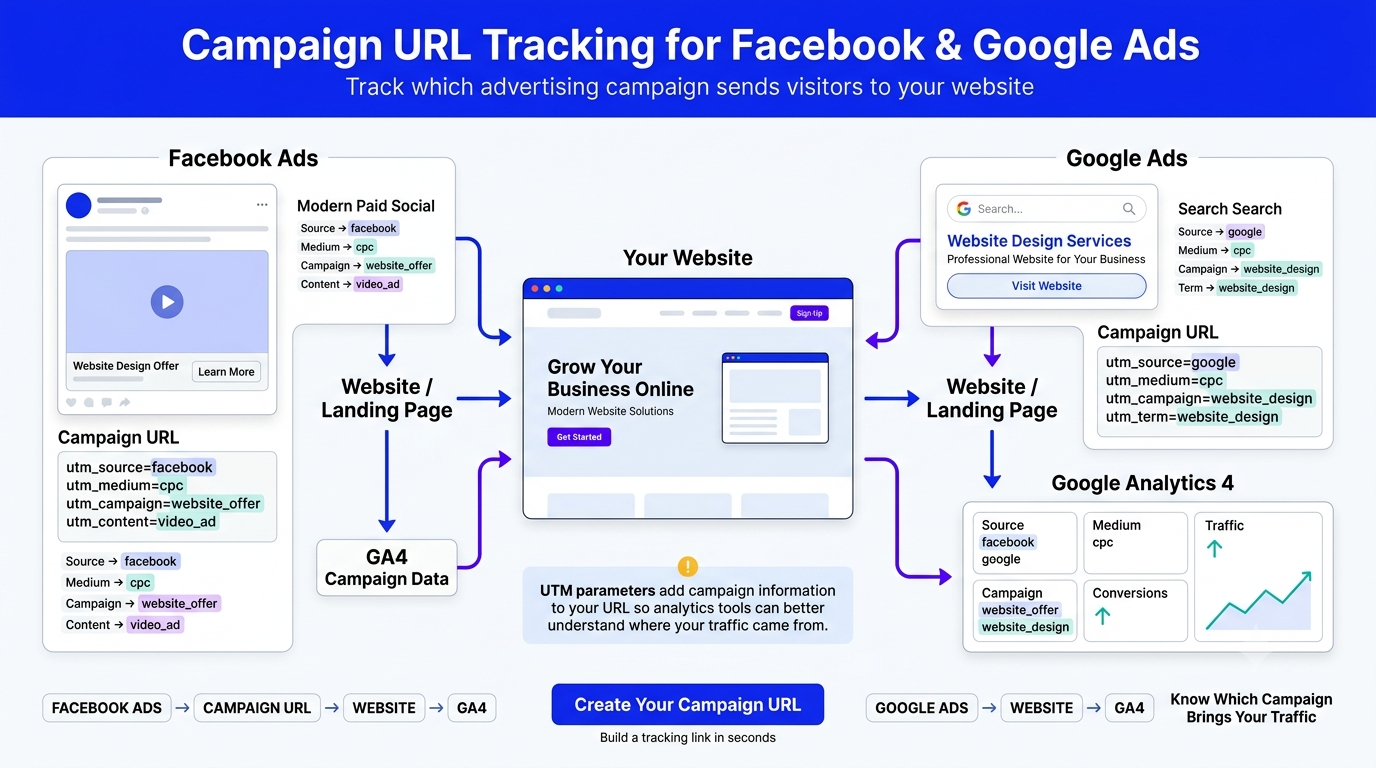
Facebook and Instagram advertising are common use cases for campaign tracking.
Suppose you’re running a campaign to promote a service.
You might use:
utm_source=facebook
utm_medium=cpc
utm_campaign=website_service
Now imagine you have two creatives:
Creative 1:
utm_content=image_ad
Creative 2:
utm_content=video_ad
The source, medium, and campaign remain the same, while the content value distinguishes the ads.
This creates a more organized tracking structure.
Example
Your image ad:
https://example.com/?utm_source=facebook&utm_medium=cpc&utm_campaign=website_service&utm_content=image_ad
Your video ad:
https://example.com/?utm_source=facebook&utm_medium=cpc&utm_campaign=website_service&utm_content=video_ad
Running Facebook Ads?
Create your tracking URL before launching the campaign.
Campaign URL Tracking for Google Ads
Google Ads is another important use case
For example
utm_source=google
utm_medium=cpc
utm_campaign=website_design
utm_term=website_design_service
This can help organize campaign information within your analytics reports.
However, Google Ads also provides its own native tracking mechanisms, including auto-tagging and Google Click ID (GCLID).
Therefore, your UTM strategy should be planned alongside your existing Google Ads and GA4 measurement setup rather than treating UTM parameters as a replacement for native tracking.
Email Marketing Campaign Tracking
UTM tracking is also useful for email campaigns.
Suppose you’re sending a promotional newsletter.
You could use:
utm_source=newsletter
utm_medium=email
utm_campaign=august_offer
Now suppose your email contains two CTA buttons.
The first button:
utm_content=top_cta
The second button:
utm_content=bottom_cta
This allows you to distinguish the links in your campaign reporting.
Create Your Email Campaign Link
Generate a Tracking URL
Social Media Campaign Tracking
You can also use tracking parameters for organic social media campaigns.
For example, an Instagram profile link could use:
utm_source=instagram
utm_medium=social
utm_campaign=profile_link
A YouTube campaign could use:
utm_source=youtube
utm_medium=social
utm_campaign=video_promotion
The important thing is not to copy someone else’s naming convention blindly.
Create a system that makes sense for your business and use it consistently.
Other Campaign URL Use Cases
Other Campaign URL Use Cases
Influencer Marketing
Affiliate Marketing
You can create different tracking links for different affiliate partners
QR Codes
A QR code printed on a poster, flyer, business card, or offline advertisement can point to a campaign-specific URL
YouTube
Tracking links can be placed in video descriptions or other promotional locations
Use campaign parameters for links shared through LinkedIn campaigns or promotional activities
Newsletter
Each newsletter promotion can have its own campaign name
SMS Marketing
You can create a trackable link for an SMS campaign and analyze the resulting website traffic
How to Use Campaign URLs in GA4
How Campaign Tracking Helps With Marketing Decisions
The real value of tracking isn’t simply seeing a campaign name inside GA4.
The goal is to make better marketing decisions.
Imagine you discover:
Facebook → 5,000 visits
Google → 2,000 visits
Email → 500 visits
At first glance, Facebook appears to be the winner.
But then you look deeper.
Facebook → 5,000 visits → 20 leads
Google → 2,000 visits → 40 leads
Email → 500 visits → 30 leads
Now the story is completely different.
This is why traffic volume alone isn’t enough.
You need to connect campaign traffic with meaningful business outcomes such as:
Leads
Purchases
Sign-ups
Revenue
Bookings
Downloads
A tracking URL helps provide the campaign context needed for that analysis
Campaign URL Builder Best Practices
Creating a URL is easy.
Creating a clean tracking system requires a little more discipline
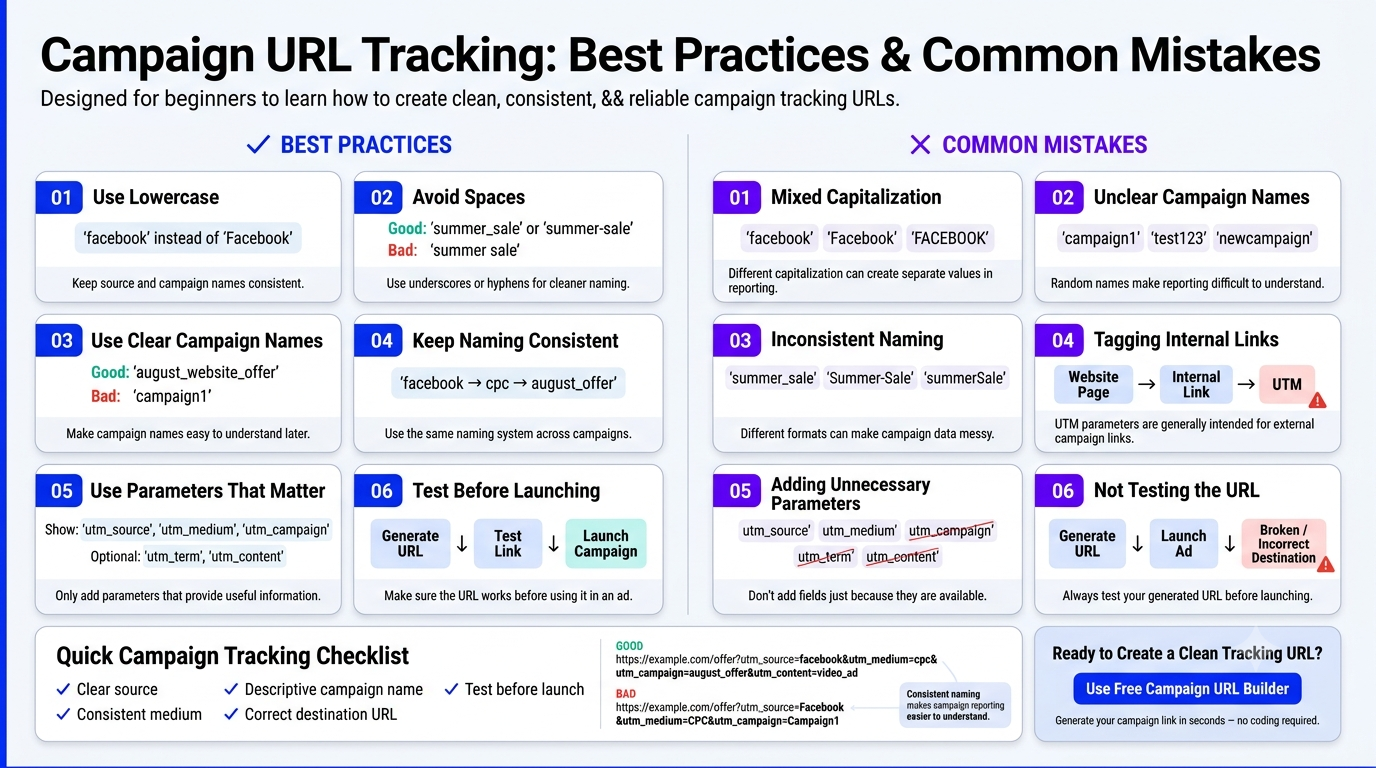
Use Lowercase
Use:
instead of:
Keep the same format across campaigns
Avoid Spaces
Instead of:
summer sale
use:
summer_sale
or:
summer-sale
This keeps your campaign naming cleaner.
Use Descriptive Names
Instead of:
campaign1
use:
august_website_offer
Your future self—and anyone working with your analytics—will understand it immediately.
Create a Naming Convention
For example
Source
Medium
cpc
Campaign
august_offer
Content
video_ad
Use a similar structure across campaigns.
Don't Tag Internal Links
UTM parameters are generally intended for links coming from external marketing activities.
For example:
Facebook → Website
Google Ads → Website
Email → Website
But you normally shouldn’t add campaign parameters to ordinary navigation links inside your own website.
Why?
Because doing so can overwrite or interfere with existing acquisition information and make your analytics journey harder to interpret.
Don't Add Every Parameter Just Because You Can
Not every campaign needs all five UTM fields.
If you don’t need utm_term, leave it empty.
If you don’t need utm_content, leave it empty.
Use the parameters that provide useful information for your reporting
Common Campaign Tracking Mistakes
Mistake 1: Inconsistent Capitalization
Using:
and:
can create separate values in reporting.
Mistake 2: Unclear Campaign Names
Using:
test123
doesn’t tell you much.
Use meaningful names instead.
Mistake 3: Random Naming
If every marketer on your team uses a different naming structure, your reports can quickly become difficult to analyze.
Mistake 4: Tagging Internal Links
This can interfere with acquisition information.
Mistake 5: Forgetting to Test the Generated URL
Always click your generated URL before launching a campaign.
Make sure
The page loads
The destination is correct
The parameters are present
The campaign behaves as expected
A few seconds of testing can prevent tracking problems later.
Why Use Our Free Campaign URL Builder?
You could manually type every parameter.
But doing this repeatedly increases the chance of:
Spelling mistakes
Missing parameters
Incorrect separators
Inconsistent campaign names
Copy-paste errors
Our free tool makes the process much easier.
You can:
✓ Enter your destination URL
✓ Add campaign source
✓ Add campaign medium
✓ Add campaign name
✓ Add campaign term
✓ Add campaign content
✓ Generate the complete URL
✓ Copy the URL instantly
No coding knowledge is required.
Create Your Tracking Link in Seconds
Don’t manually build a long URL every time you launch a campaign
A Simple Campaign Tracking Workflow
If you’re new to UTM tracking, use this simple workflow
Before launching your campaign
1. Choose the destination page
Example:
https://example.com/offer
2. Decide your source
Example:
3. Decide your medium
Example:
cpc
4. Choose a meaningful campaign name
Example:
august_offer
5. Add content if you’re testing multiple creatives
Example:
video_ad
6. Generate your URL
7. Test the URL
8. Add it to your campaign
9. Monitor the traffic and conversions in your analytics platform
This simple process can make campaign reporting much more organized.